Turn messy notes into next steps, if you want to.
Quick capture is an optional helper for the moment right after a clinic call or portal message, when the details are fresh and scattered. You paste your notes, and HopeNest suggests appointments, tasks and costs that you review one at a time. It is off until you turn it on, and the rest of HopeNest works fully by hand without it.
Free to use. No account needed to explore the sample.
How Quick capture works
- Read the plain-language notice on the page, tick the box to say you understand, and press “Turn on AI helpers”. It stays off until you do.
- Paste notes from a clinic call or portal message into the notes box.
- HopeNest reads them and lists suggested appointments, tasks and costs.
- Check each suggestion, then press Add or Skip, or use “Add all” for a group you are happy with.
- Nothing is saved until you press Add, and you can turn the helper off again at any time.
Why it helps
-
You stay in charge.
Every suggestion waits for your check, and nothing is saved until you press Add.
-
Optional, and off by default.
The helper does nothing until you turn it on, and you can turn it off whenever you like.
-
Less retyping.
Notes become appointment, task and cost suggestions you can accept in a click instead of copying by hand.
-
Medications stay manual.
If your notes mention medication, HopeNest asks you to enter it yourself, exactly as your clinic wrote it, so every dose is right.
Questions about Quick capture
Where do my notes go when I use Quick capture?
Your text is sent through our own AI gateway to OpenAI to organize it. OpenAI does not train on it and may keep it up to 30 days for abuse monitoring. Our gateway does not store your text, and we never use it for anything else.
Can the suggestions be wrong?
Yes, which is why each one is checked by you before it is saved. The page says so directly, and it is not medical advice.
Do I need Quick capture to use HopeNest?
No. Every part of HopeNest works by hand. If AI helpers are not available in your space yet, the page says they are coming soon.
Keep exploring
-
Appointments
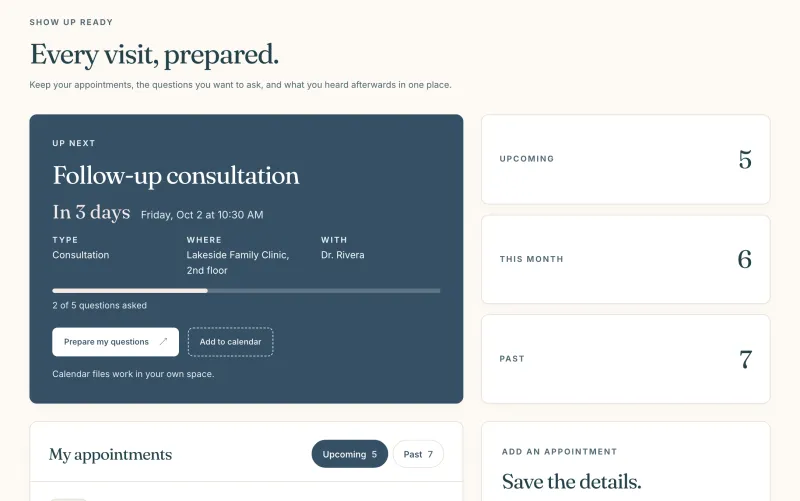
Every visit with its questions, notes and follow-ups in one place.
-
My checklist
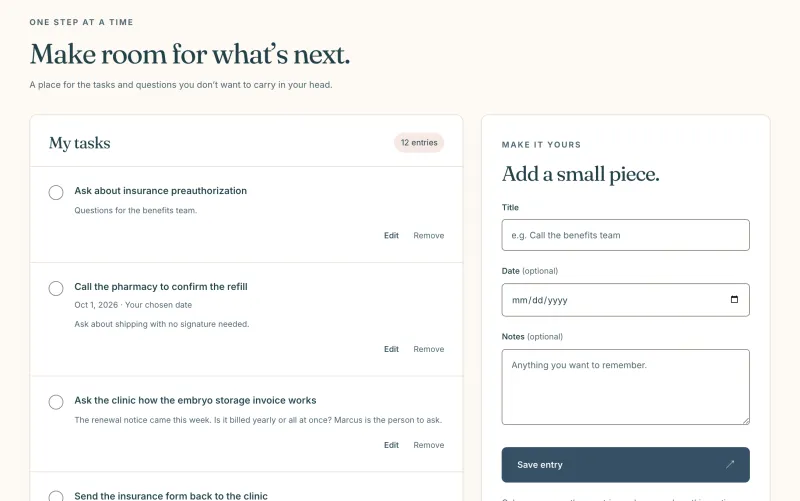
The tasks you do not want to carry in your head, checked off at your pace.
-
Costs and funding
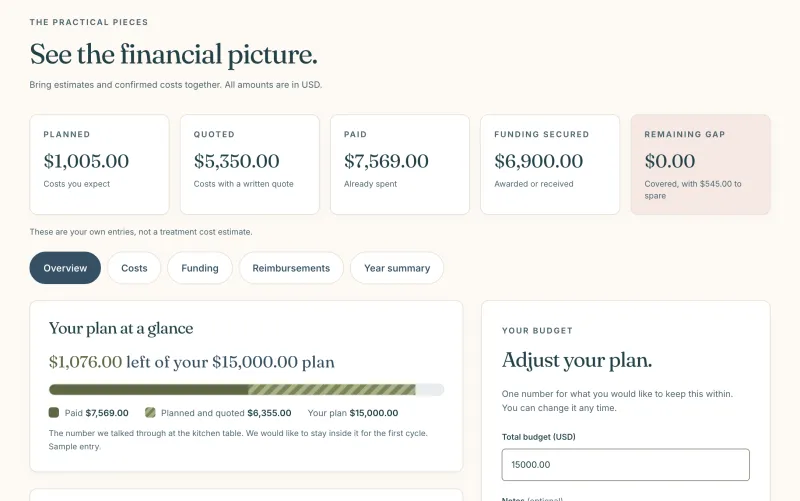
Costs, a budget, grants and reimbursements, with plain totals.